
Connect Lark
Bring your own Lark (or Feishu) Custom App. You build it in the Lark developer console, then paste its App ID and Secret into the dashboard — we verify them and store them on your VM. Requires an agent on the OpenClaw orchestrator.
1. Open Connect Lark
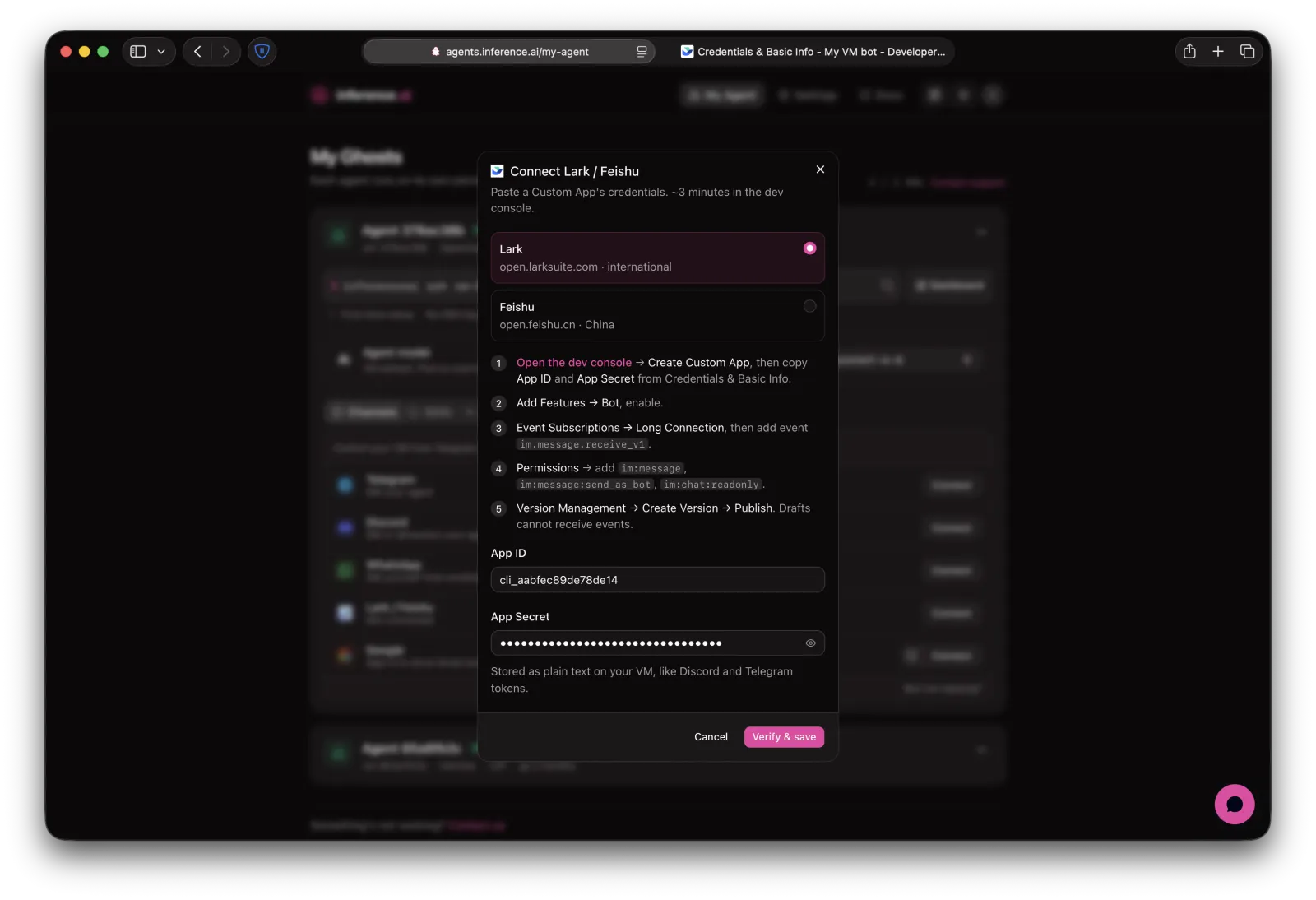
In your dashboard, click Channels → Lark / Feishu → Connect. Pick Lark (open.larksuite.com, international) or Feishu (open.feishu.cn, China). Keep this dialog open — you'll paste credentials back here at the end.
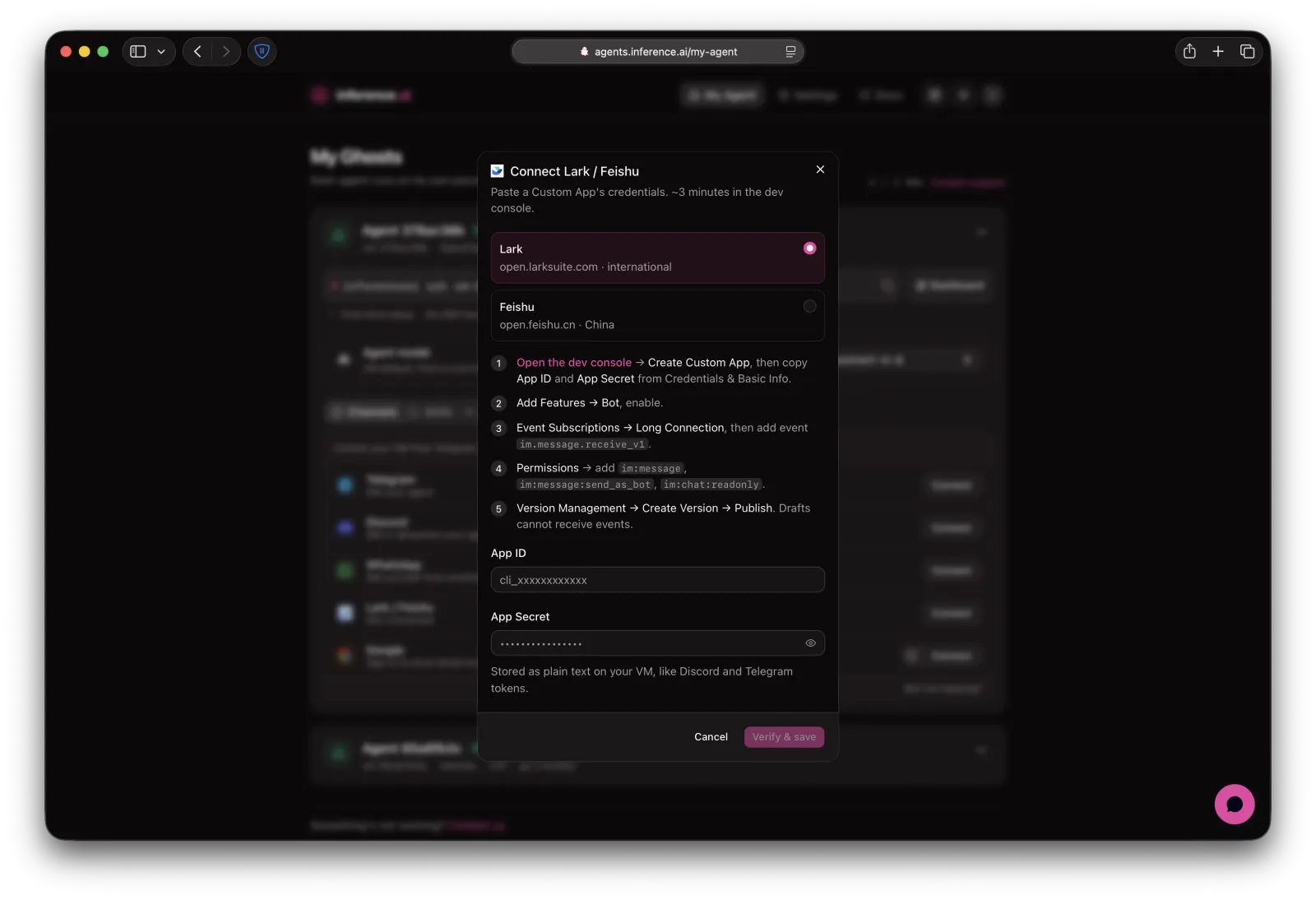
2. Create a Custom App
Click Open the dev console in the dialog, then Create Custom App.
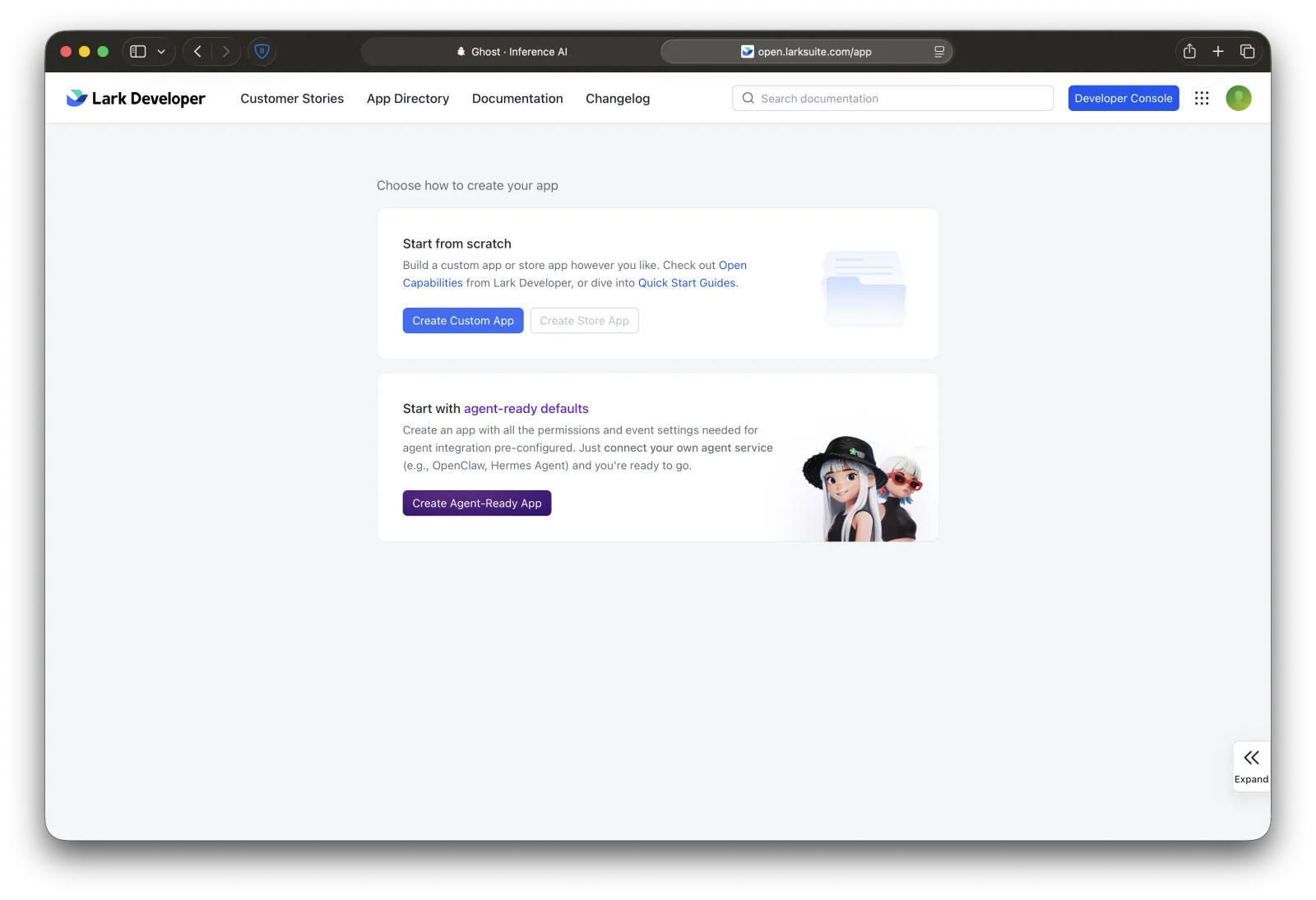
Give it any name, description, and icon, then click Create.
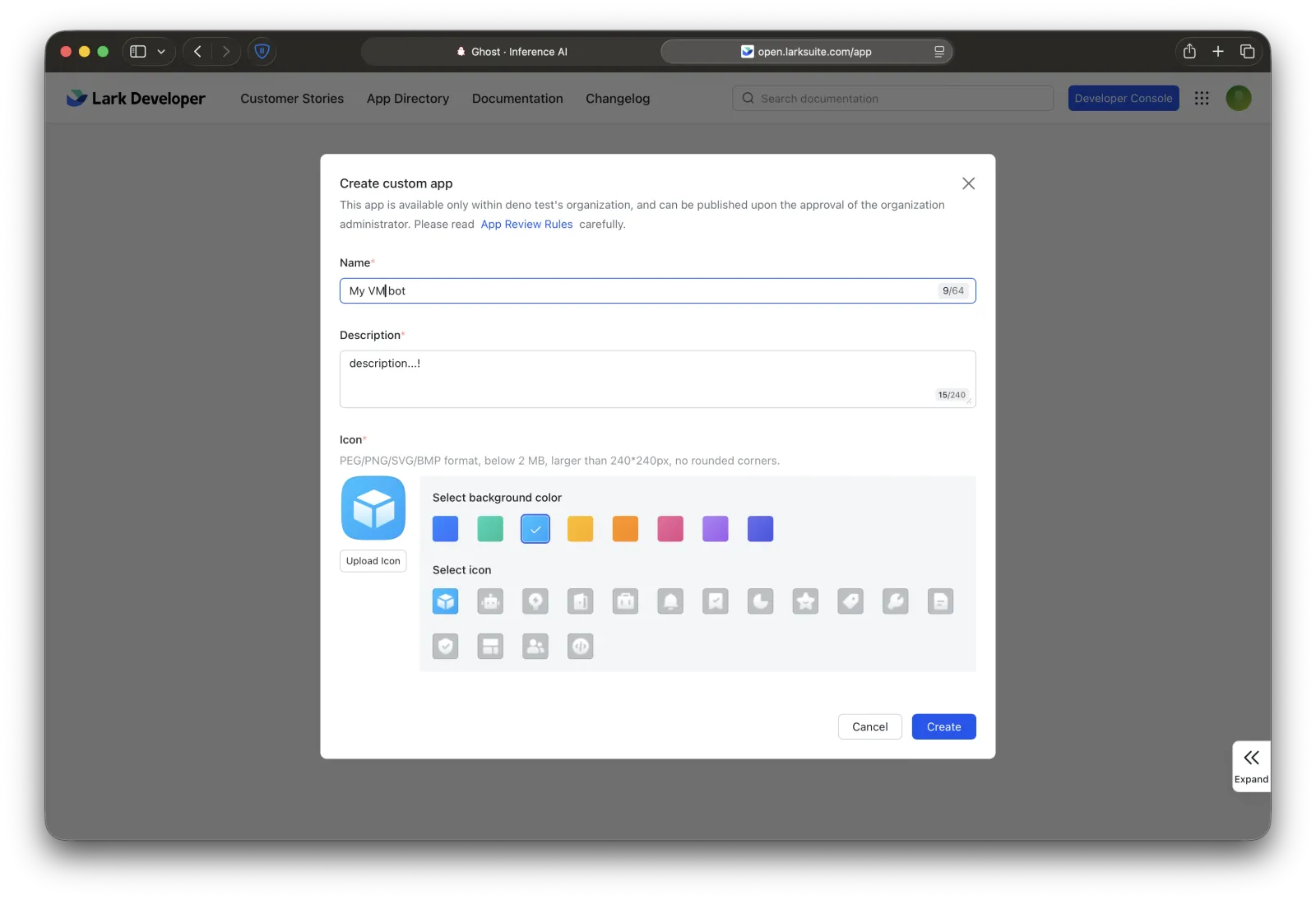
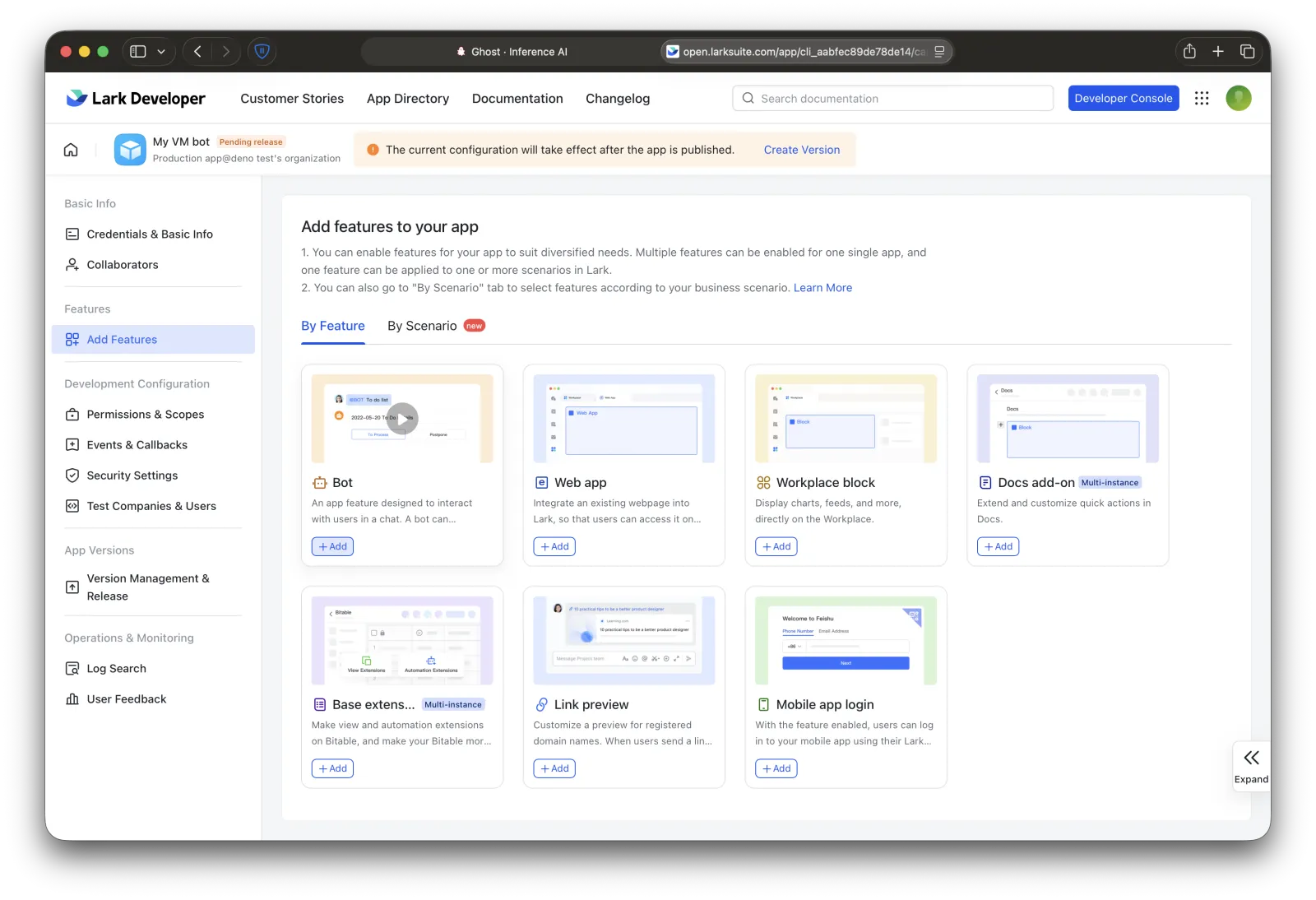
3. Enable the Bot
In the app, open Add Features, find Bot, and enable it.
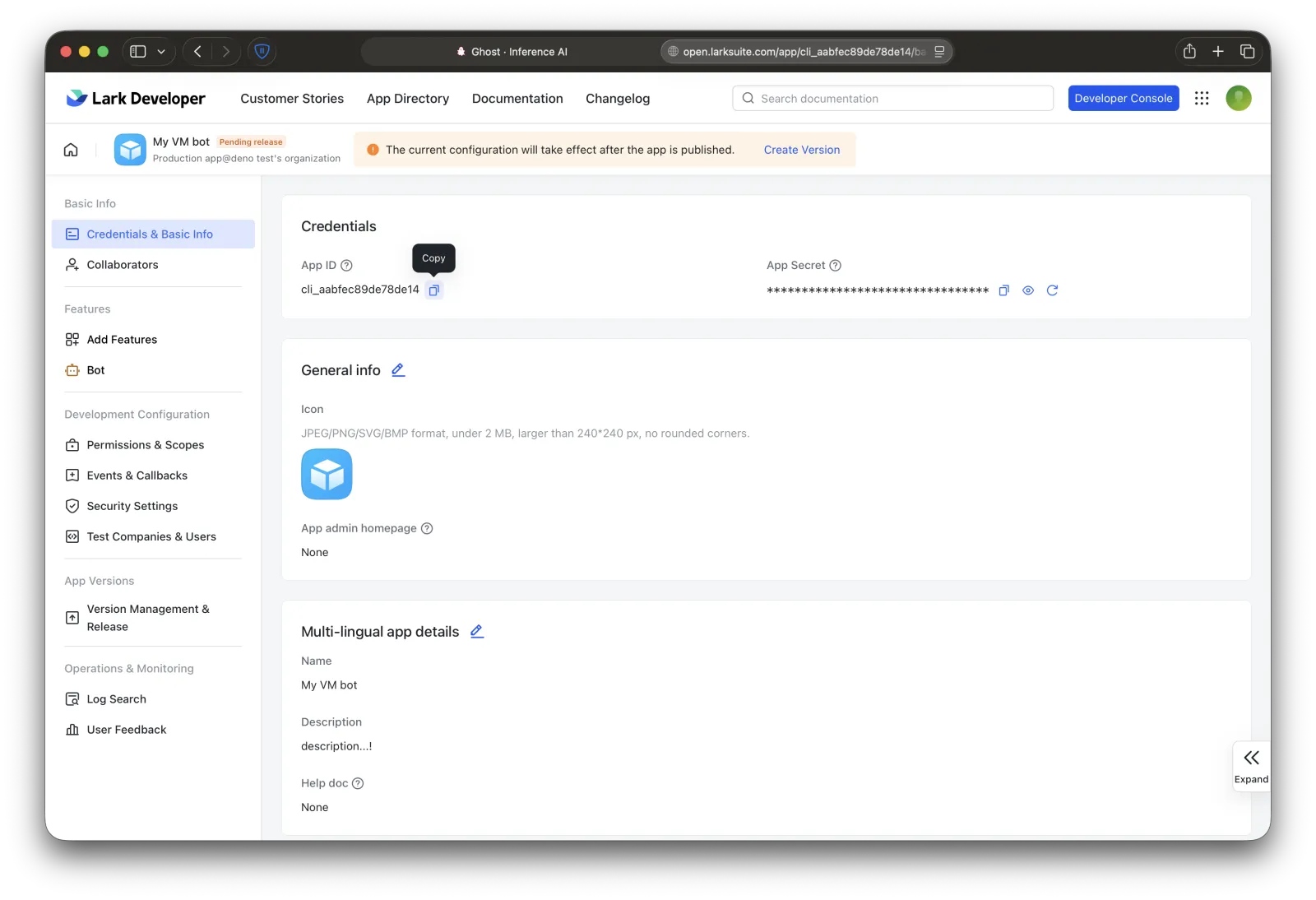
4. Copy the App ID and Secret
Open Credentials & Basic Info and copy the App ID and App Secret (click the eye to reveal the secret). You'll paste both at the end.
5. Subscribe to message events
Open Events & Callbacks → Event Configuration.
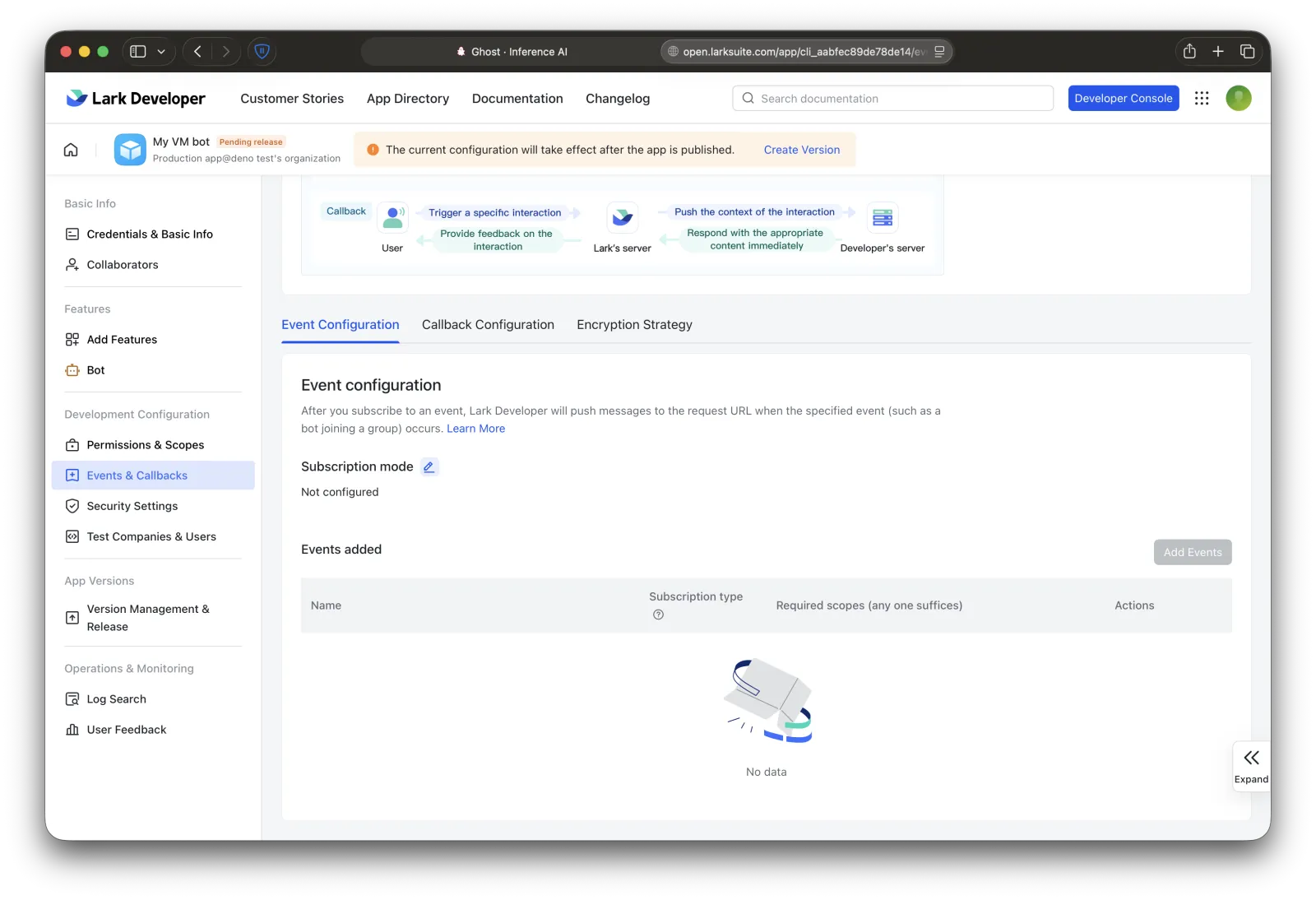
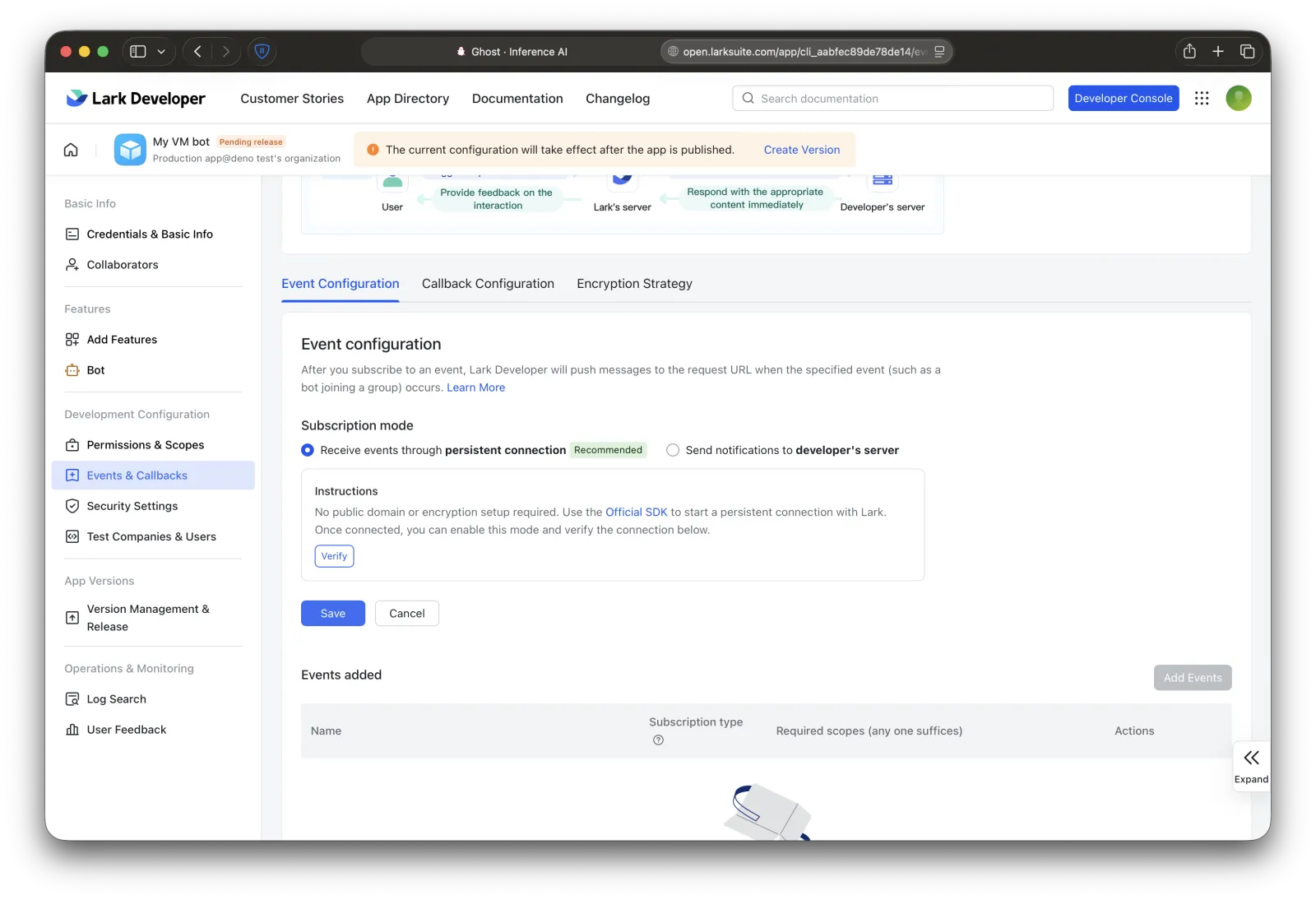
Set the subscription mode to Receive events through persistent connection — a long connection, so there's no public URL to host.
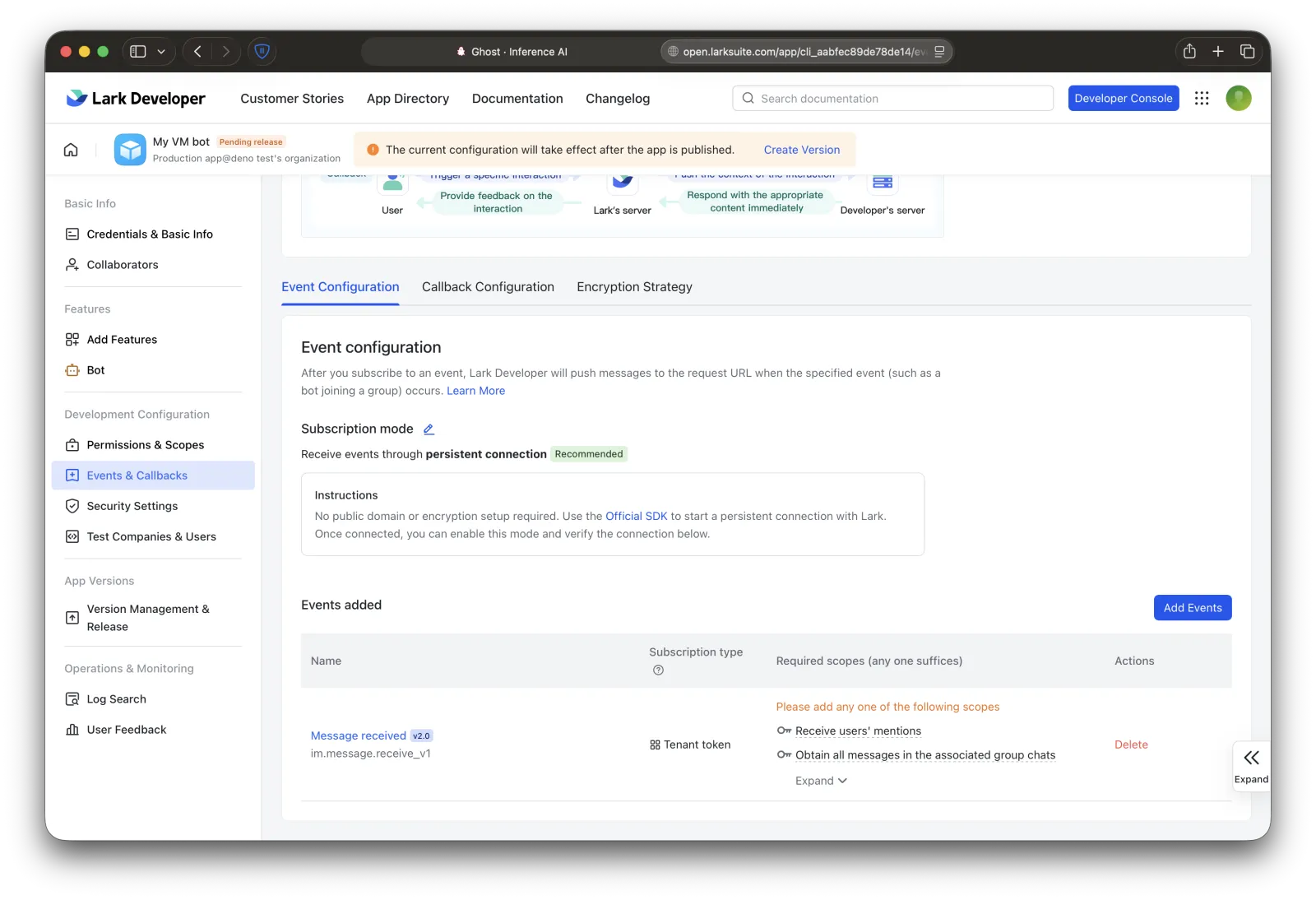
Add the event im.message.receive_v1.
6. Add permissions
Open Permissions & Scopes and add:
- Get direct messages sent to bot — required, or the bot receives nothing
- Receive other bots' and users' mentions — for group @-mentions
im:message— read and send direct and group messagesim:message:send_as_bot— send messages as the appim:chat:readonly— obtain group information
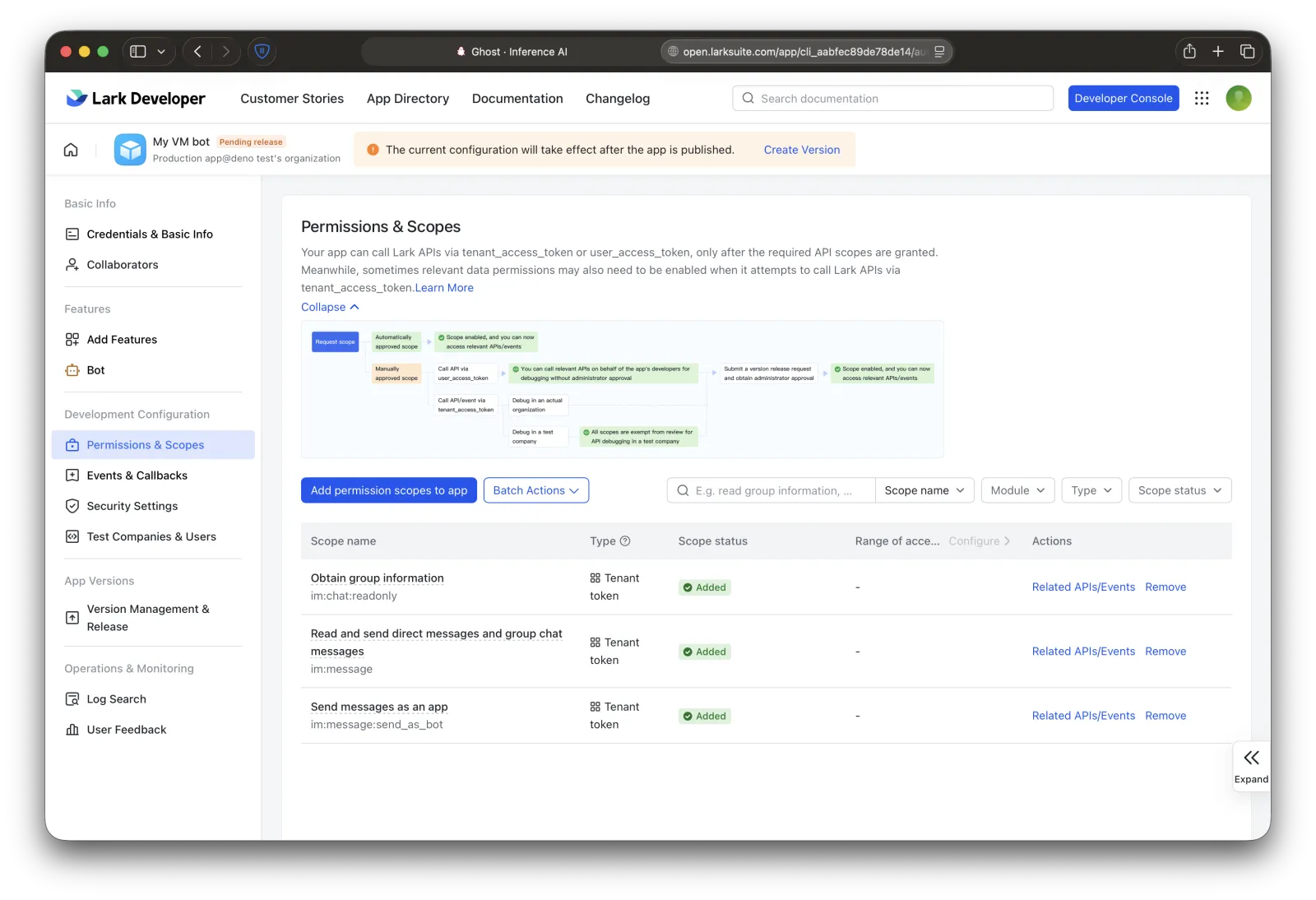
The first two are what im.message.receive_v1 requires. Until one is added, that event shows an orange warning and delivers nothing.
7. Publish a version
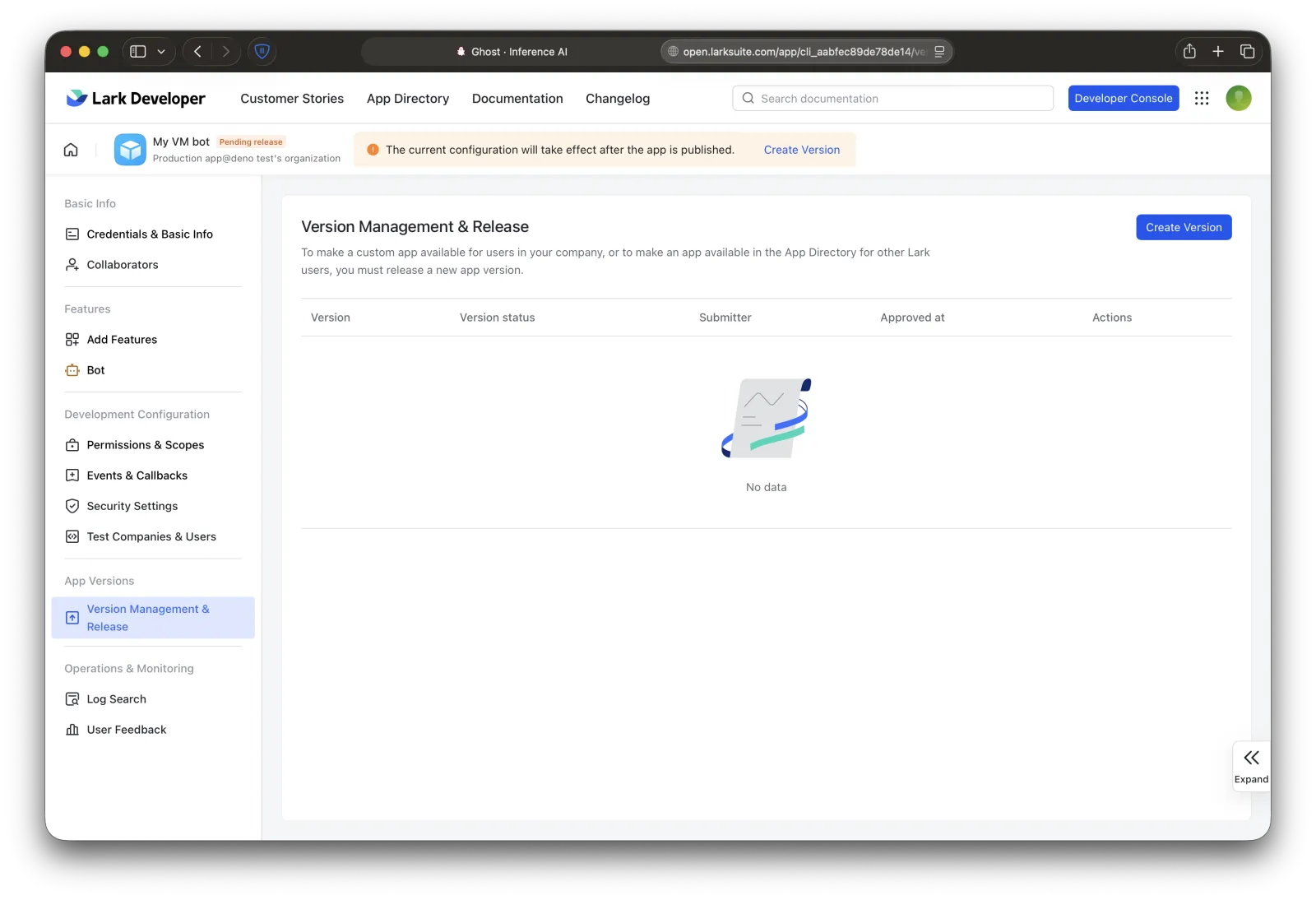
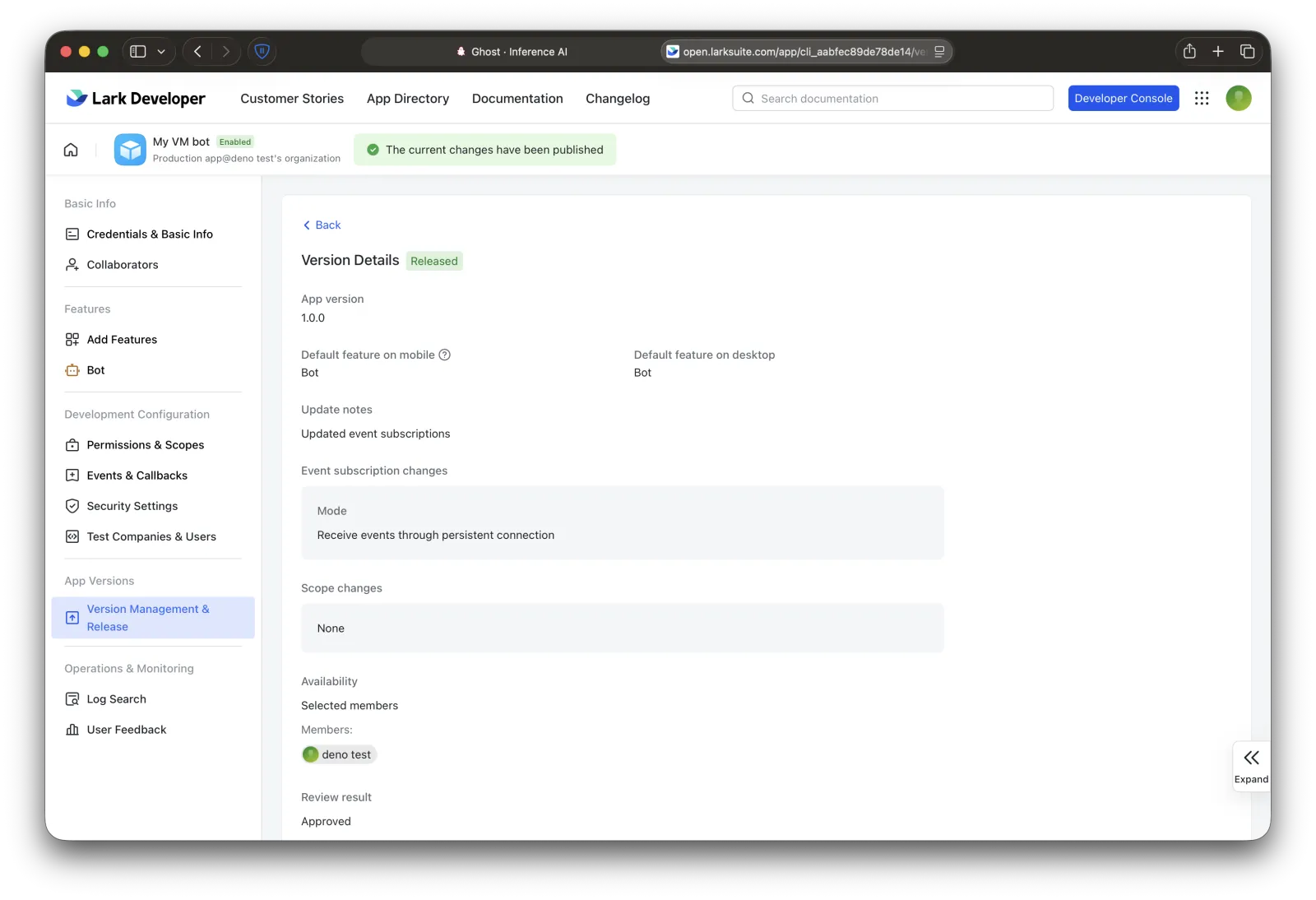
Drafts don't receive events — you must publish. Open Version Management & Release → Create Version.
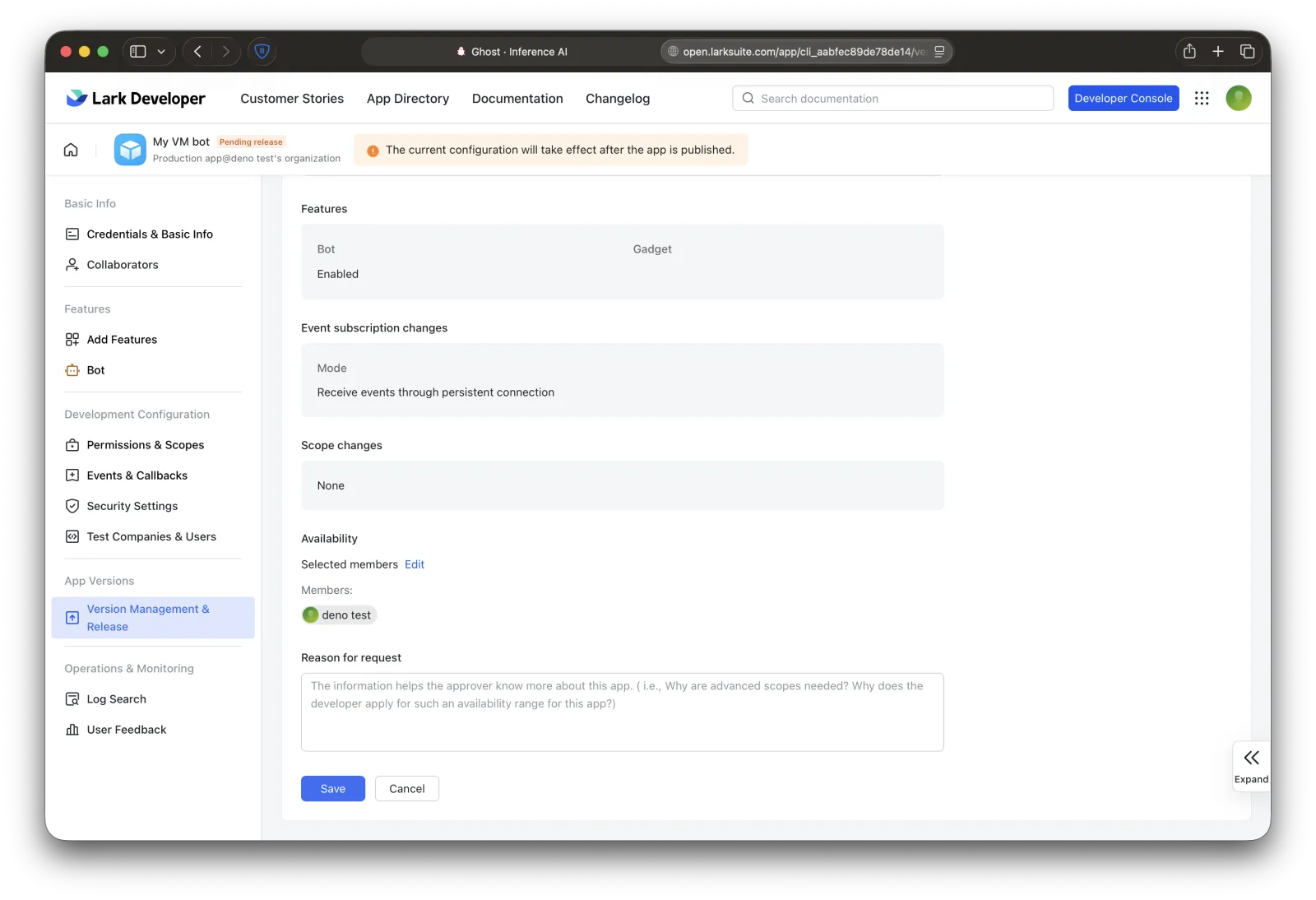
Fill in the version details and click Save.
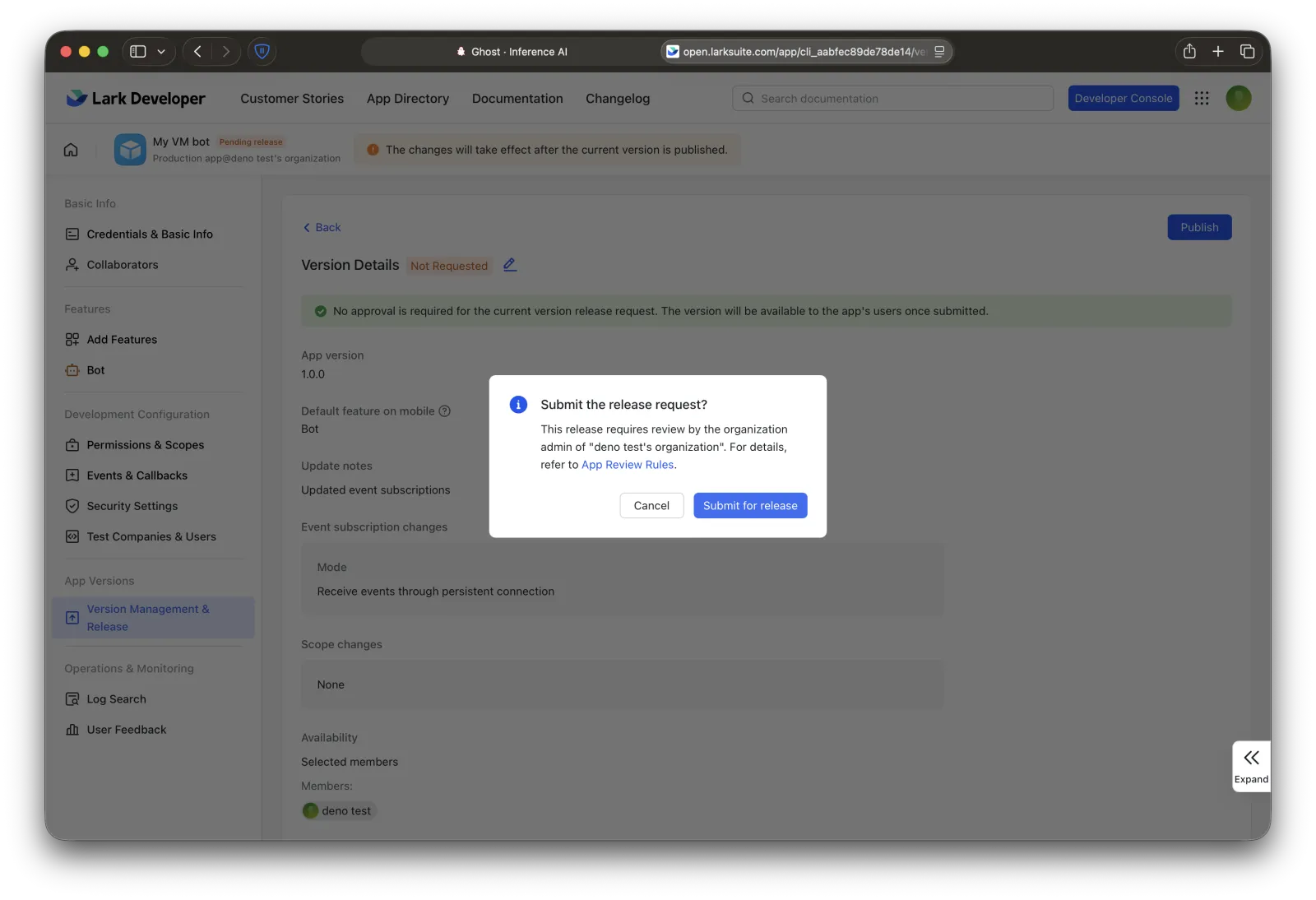
Click Publish, then Submit for release. If your org requires admin approval, the version waits until an admin approves it.
Wait until the version shows Released.
8. Paste credentials in the dashboard
Back in the Connect dialog, paste the App ID and App Secret, confirm the region, and click Verify & save. We check the credentials against Lark and store them on your VM as plain text, like your Discord and Telegram tokens.
9. You're connected
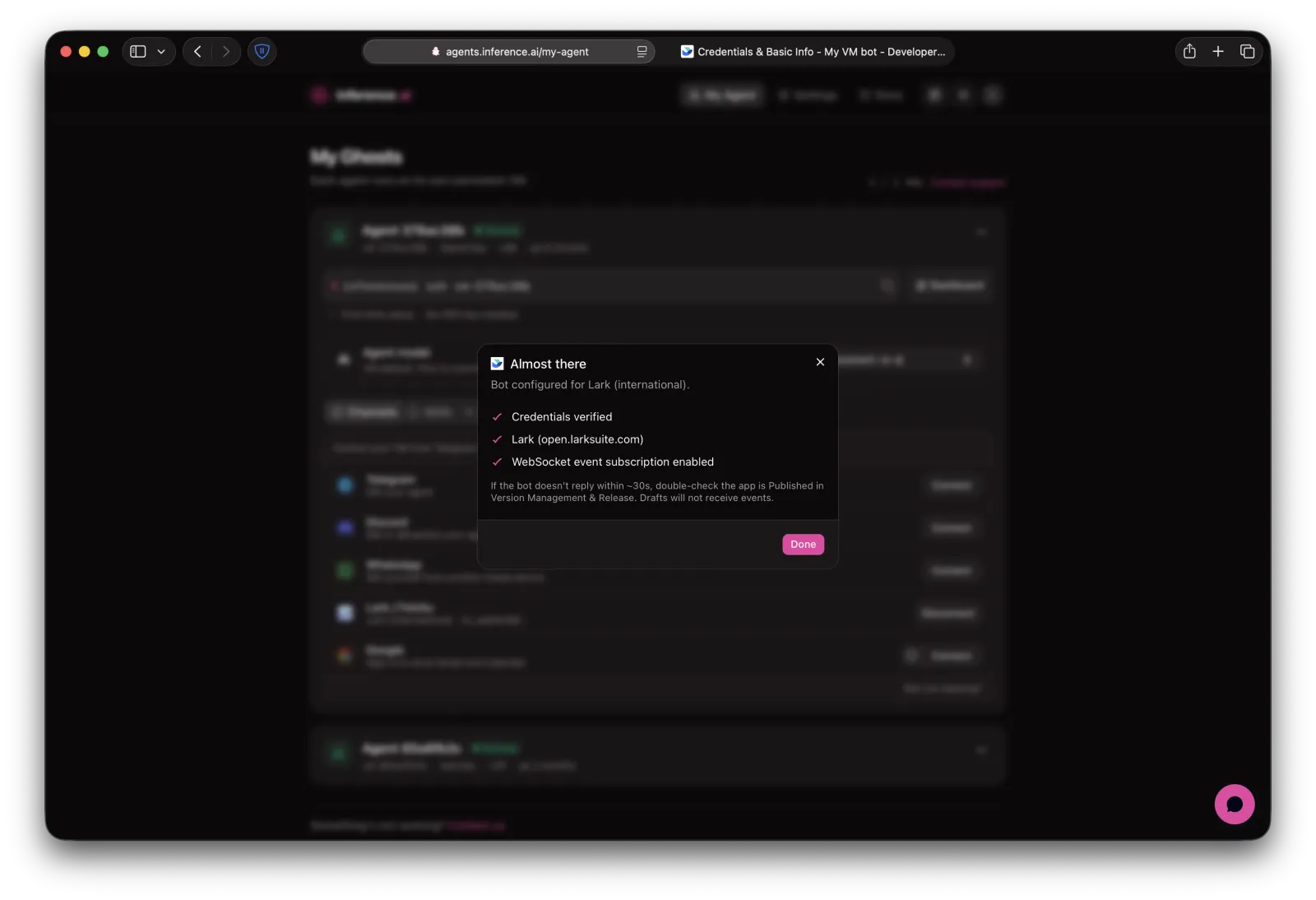
The dialog shows Almost there and the Lark / Feishu row flips to Connected. Open your bot in Lark or Feishu and send it a message; the first reply can take 30–60 seconds.
If the bot stays silent, check:
im.message.receive_v1has no orange scope warning- The app shows Released — scope and feature changes need a new version
- Add Features → Bot is enabled
- You just saved a setting — the gateway restarts, so wait a couple of minutes and resend
Disconnecting
Click Disconnect on the Lark / Feishu row. We delete the App ID and Secret from your VM and the bot stops responding. To remove it entirely, unpublish or delete the app in the Lark developer console.