
Connect Discord
Bring your own Discord app. @mention it in any channel and it routes to your agent VM. The bot lives in your Discord developer account; we only see the bot token you paste in.
Watch the full setup
1. Open the Set up your bot dialog
In your dashboard, click Channels → Discord → Set up your bot. Keep this dialog open; you'll come back to it after step 5.
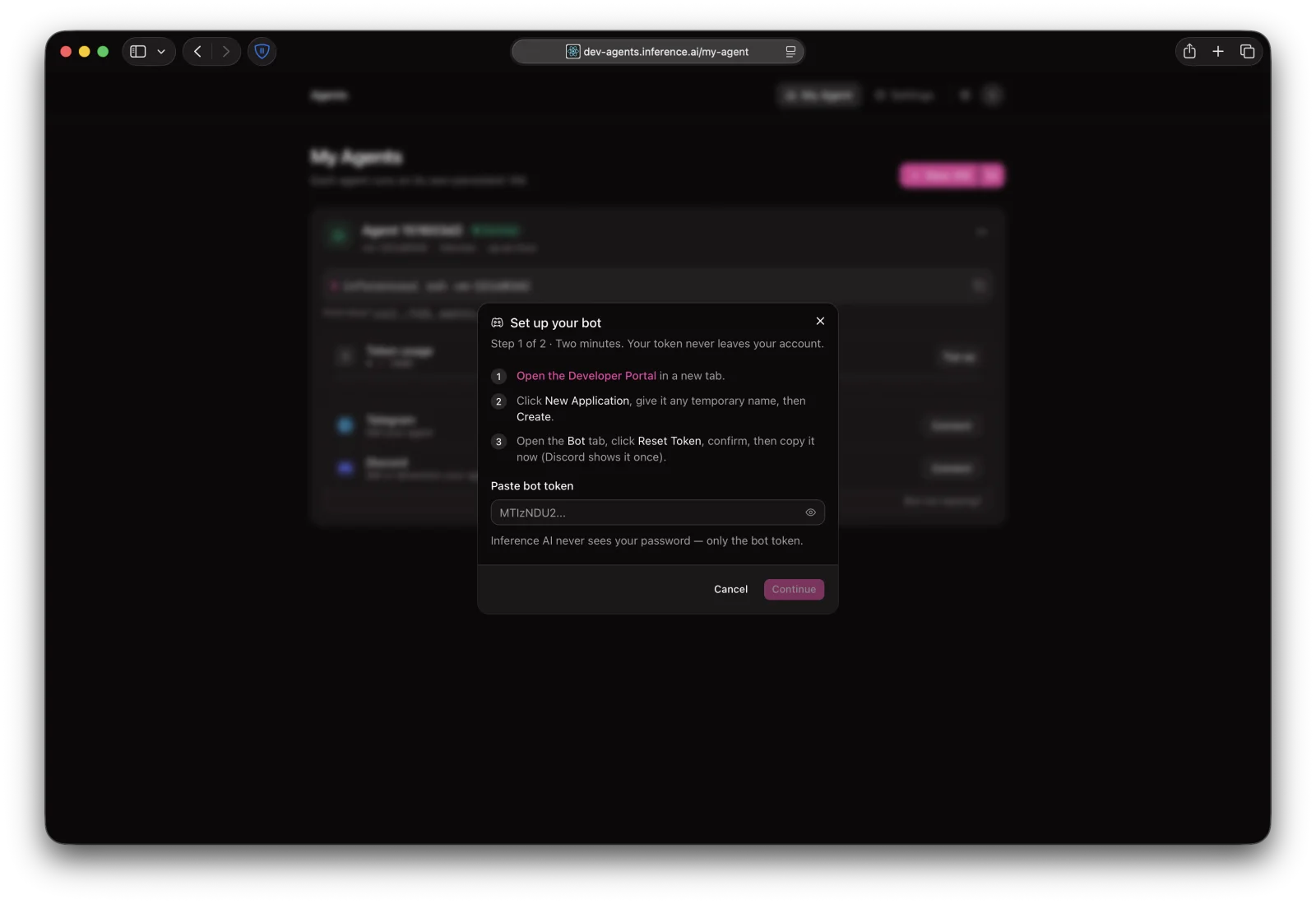
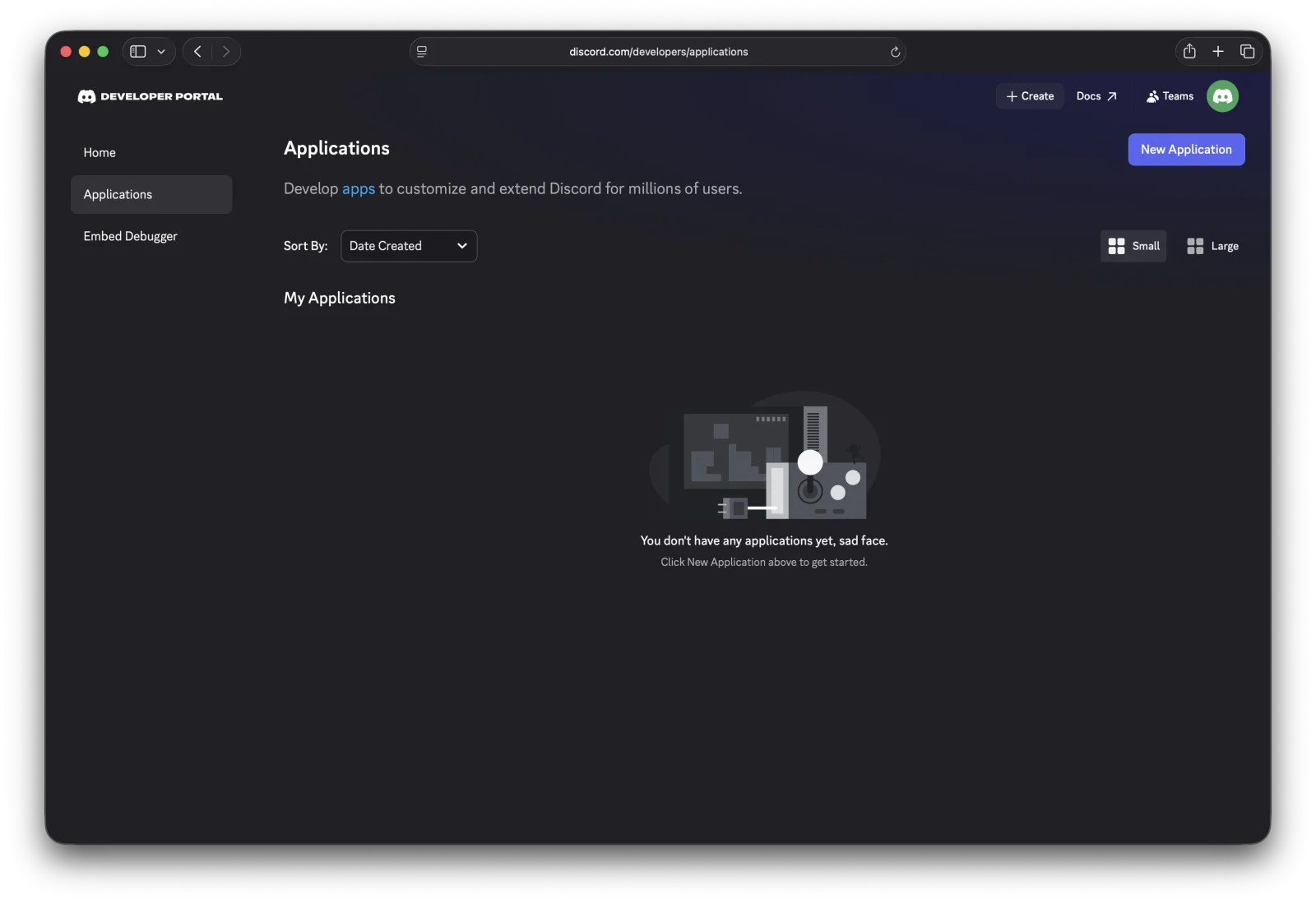
2. Open the Developer Portal
Go to discord.com/developers/applications and click New Application (top right).
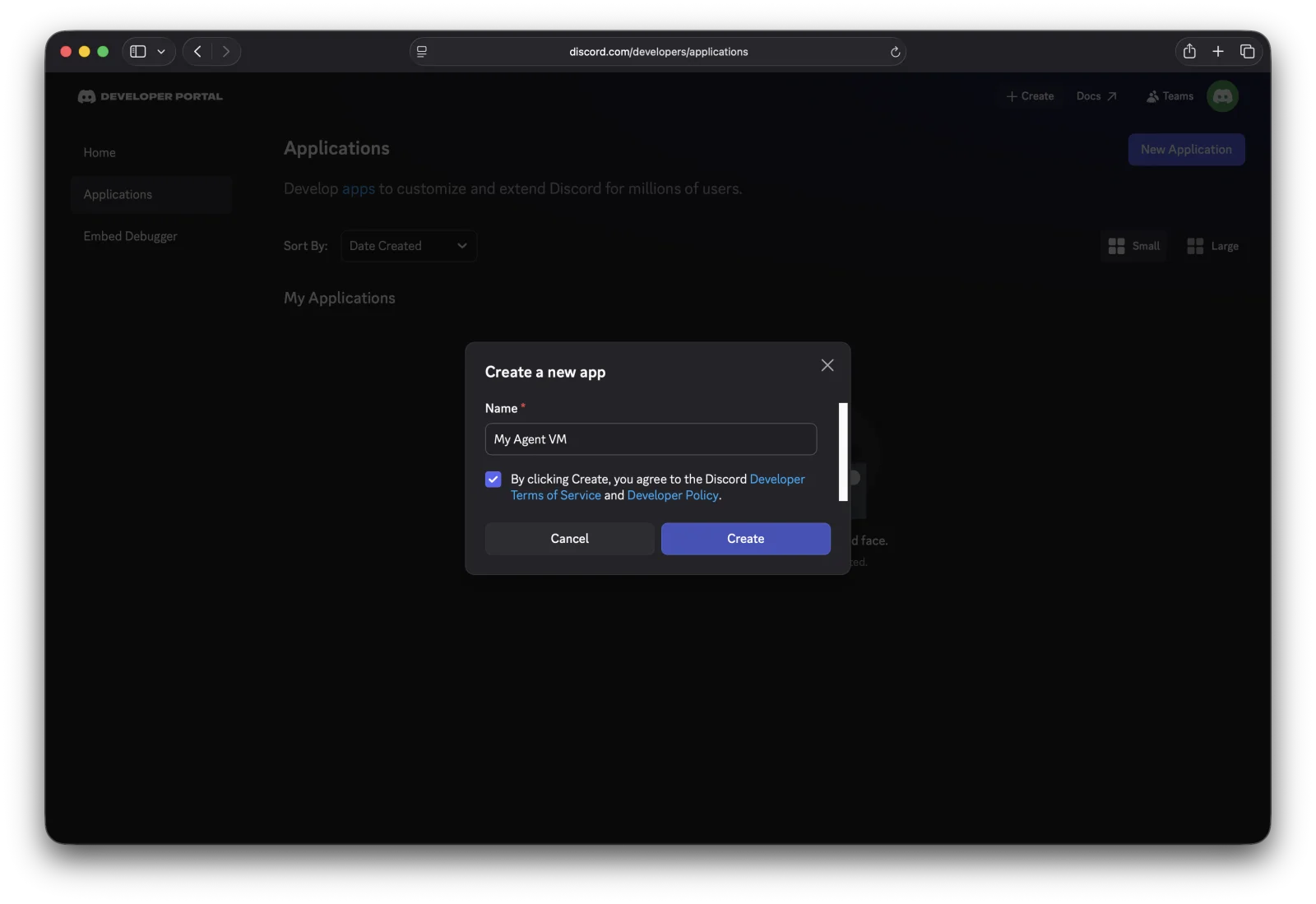
3. Name it and create
Any name works; rename later if needed. Accept the terms and click Create.
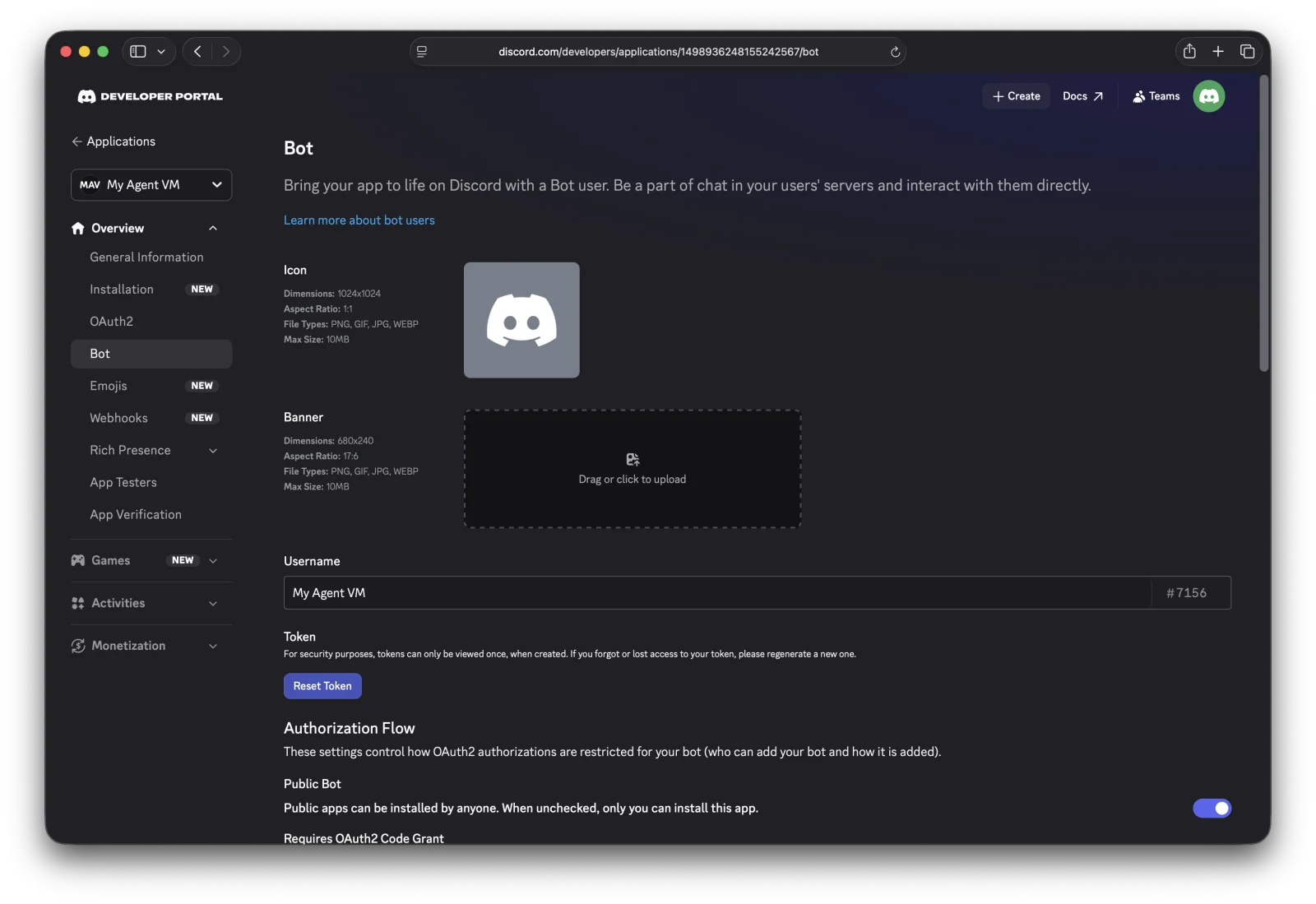
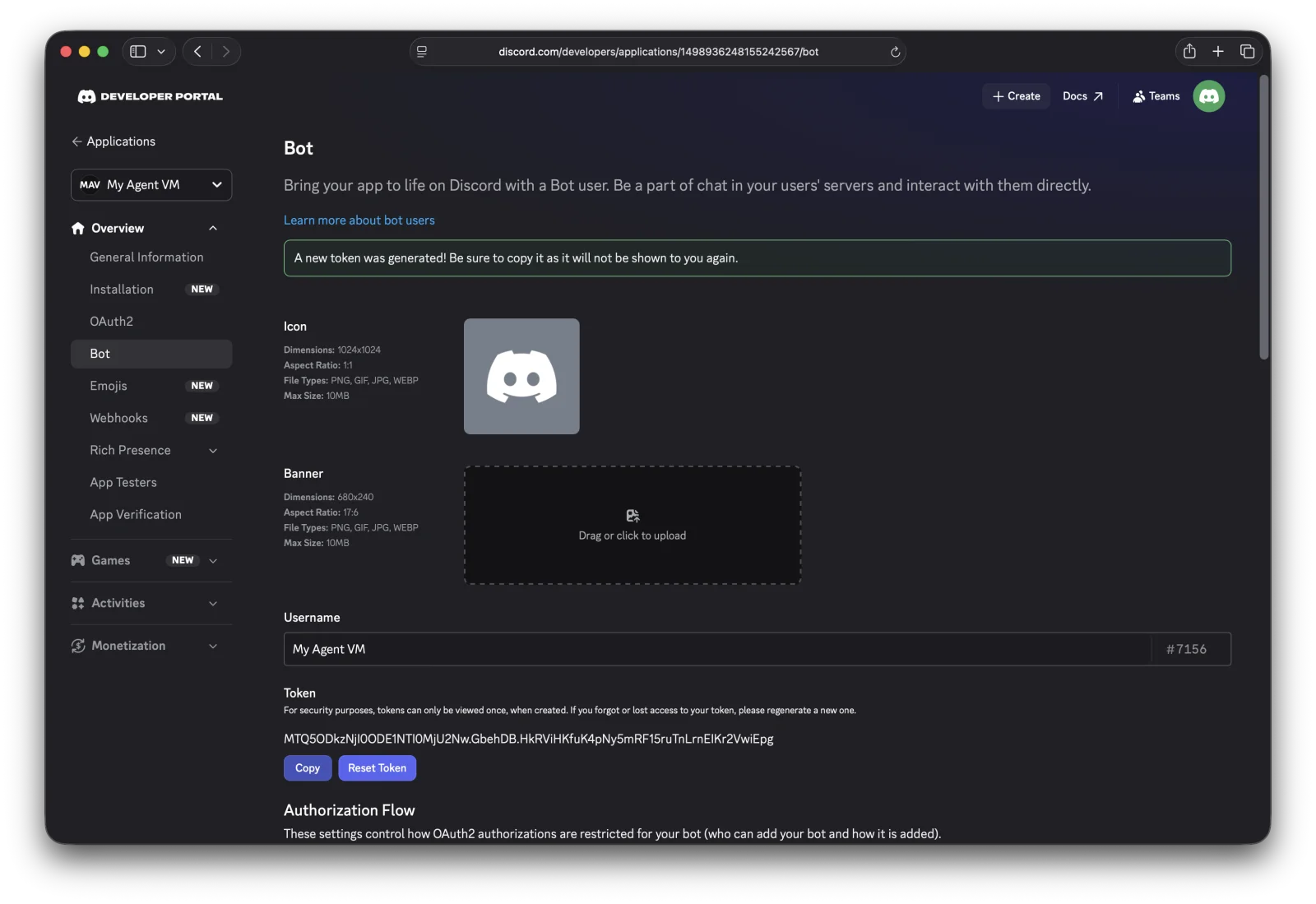
4. Open the Bot tab → Reset Token
Click Bot in the left sidebar, then Reset Token. Discord shows the token exactly once.
5. Copy the token
Use the Copy button. Discord shows the token once; after that, only the Reset button.
6. Paste it in the dashboard
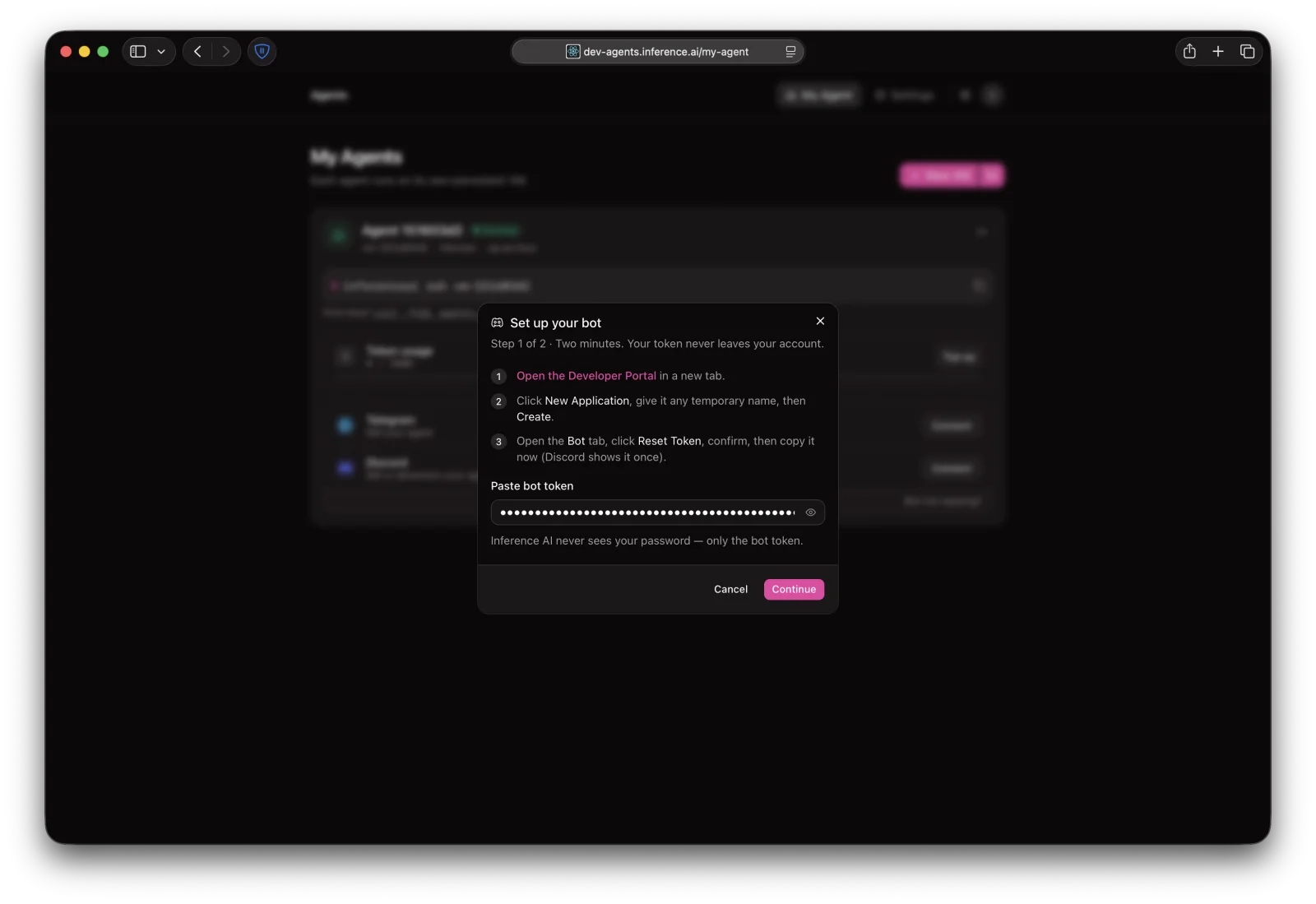
Back in the dashboard tab, paste the token and click Continue. We verify the token, rename your bot to match your agent, and enable DM and @mention intents.
7. Add to server
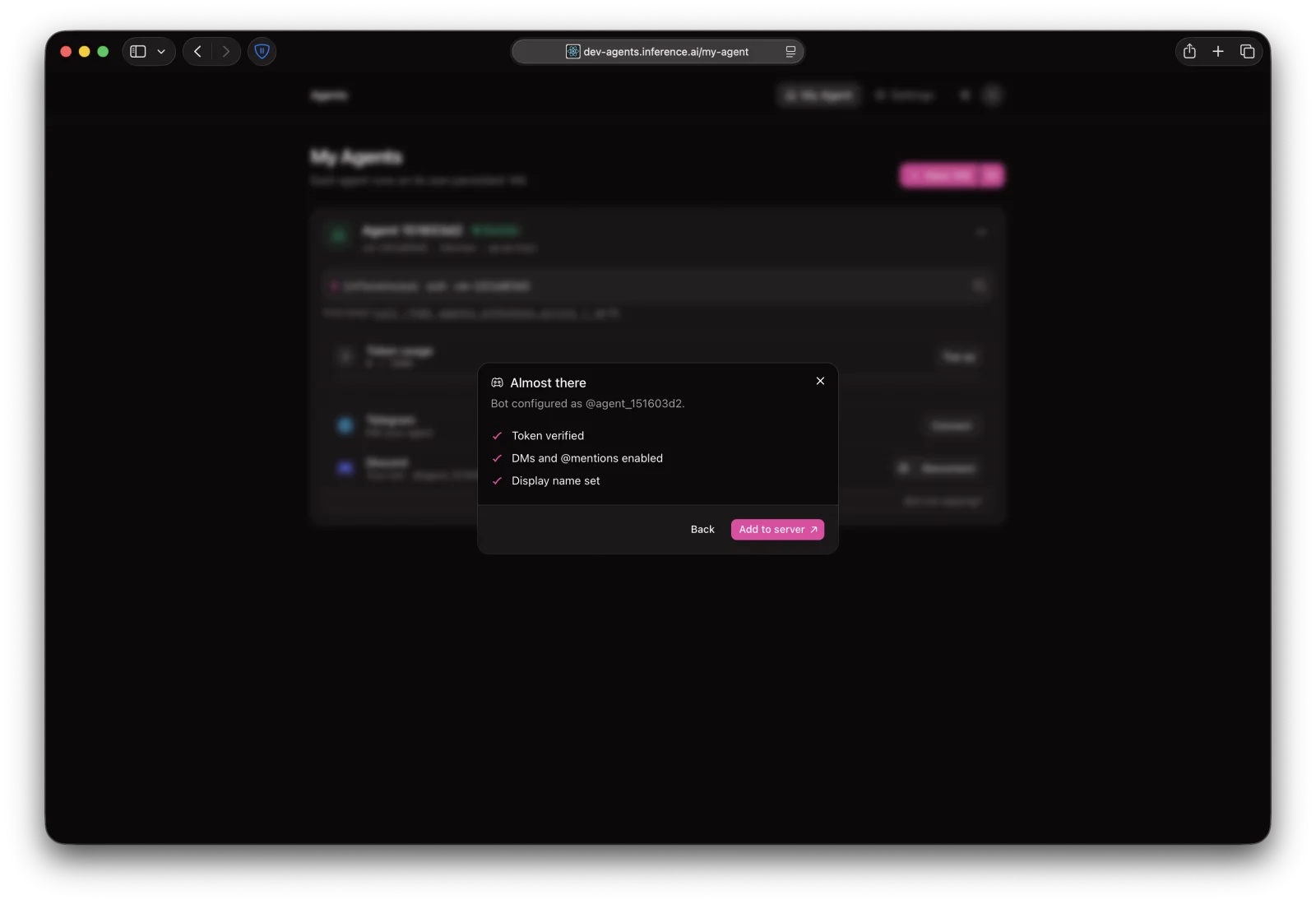
When you see "Almost there", click Add to server, pick a server, and authorize.
Done. @mention it from any channel.
Talking to your agent
@mention the bot in a channel — @your-agent <task>. It only replies when mentioned.
The first reply can take 30–60 seconds. It can read image and PDF attachments.
Disconnecting
Click Disconnect on the Discord row in your dashboard. We delete the token from our database and the bot stops responding immediately. To remove the bot from your server entirely, kick it from the server's member list.